


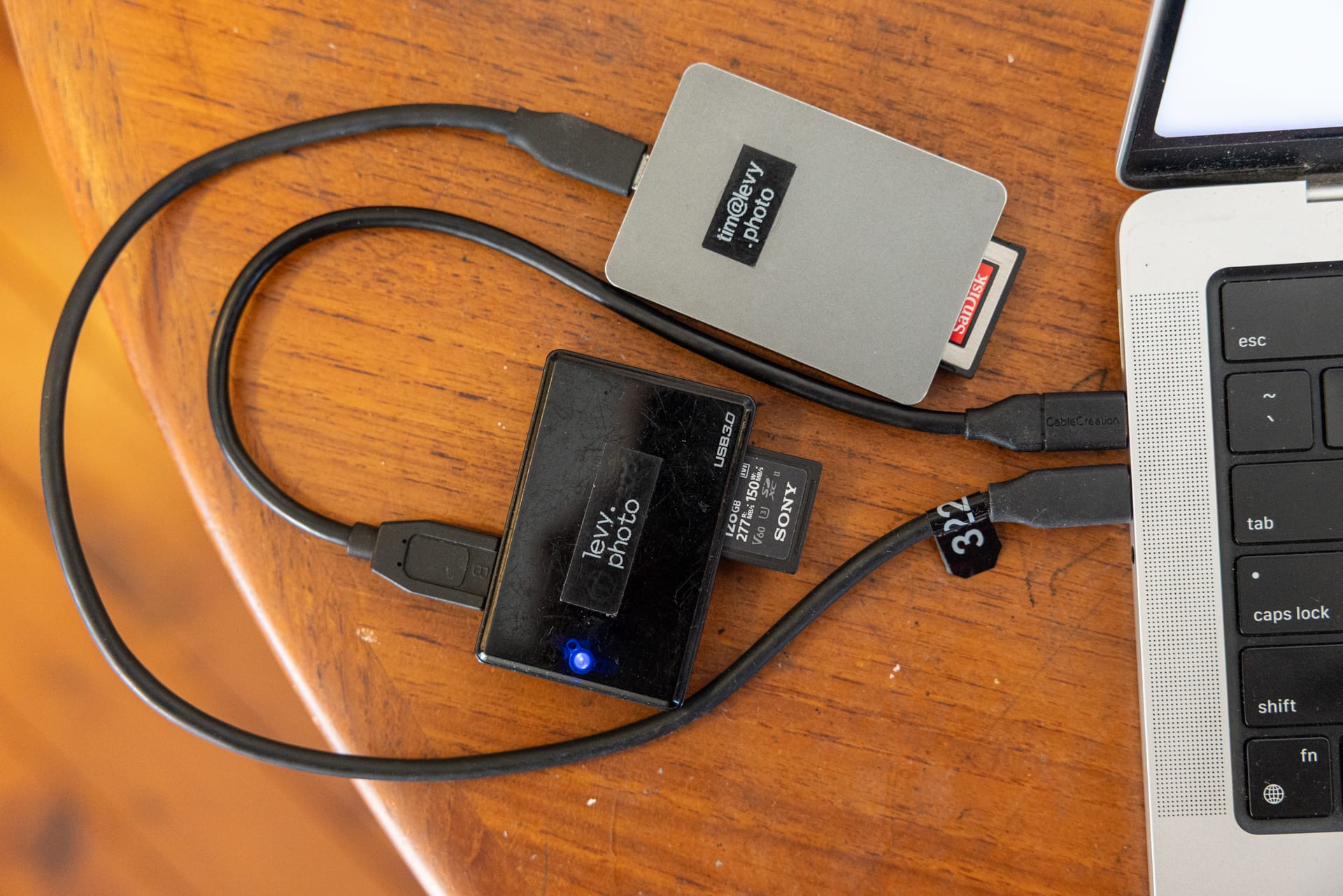
We all suffer from this – bags, boxes and draws full of USB-C 'mystery cables' that could be enhancing or limiting our workflow. While the cables outer casings may look the same, the technology inside varies wildly.
Because no universal governing body, nor strict ISO standards enforce physical markings to denote throughput speed, a cheap powerbank charging cable that maxes out at a sluggish 480 Mbps can look very similar to a 5Gbps cable, or even a high-performance Thunderbolt 5 cable capable of a blistering 120 Gbps.
While the safest bet has always been using the cable that originally shipped with your device, nobody really wants to rely on a label maker to track which cable is what speed.
But why do I care about cable speeds?
To understand the massive difference between a 480 Mbps (Megabits per second) and 10 Gbps (Gigabits per second) cable, it helps to look at them in terms of speed, technology, and real–world performance.

The short answer is that 10 Gbps is roughly 21 times faster than 480 Mbps. Data speeds are measured in bits, but file sizes are measured in Bytes (1 Byte = 8 bits). To find the actual transfer speed in Megabytes (MB) or Gigabytes (GB) per second, we divide by 8:
• 480 Mbps = 60 MB/s (Megabytes per second)
• 10 Gbps (10,000 Mbps) = 1,250 MB/s or 1.25 GB/s (Gigabytes per second)
So if you accidentally grab a slow 480 Mbps cable to connect to some of the latest generation of USB4 CFexpress Type B readers which top out at a theoretical 5,000 MB/s, you are doing yourself a disservice.
Fortunately, Mac users have a few ways to diagnose these phantom bottlenecks.
Historically, the native method involved digging deep into the macOS hardware architecture. By going into System Settings, you can navigate to the General > System Report > USB or Thunderbolt/USB4 tabs. Here, macOS displays the cable link speed of whatever is currently connected.
And we have used this method before to sort out crappy from crazy fast cables in the past – but now there is a new free Mac app that conjures all this information from one click.
The WhatCable solution
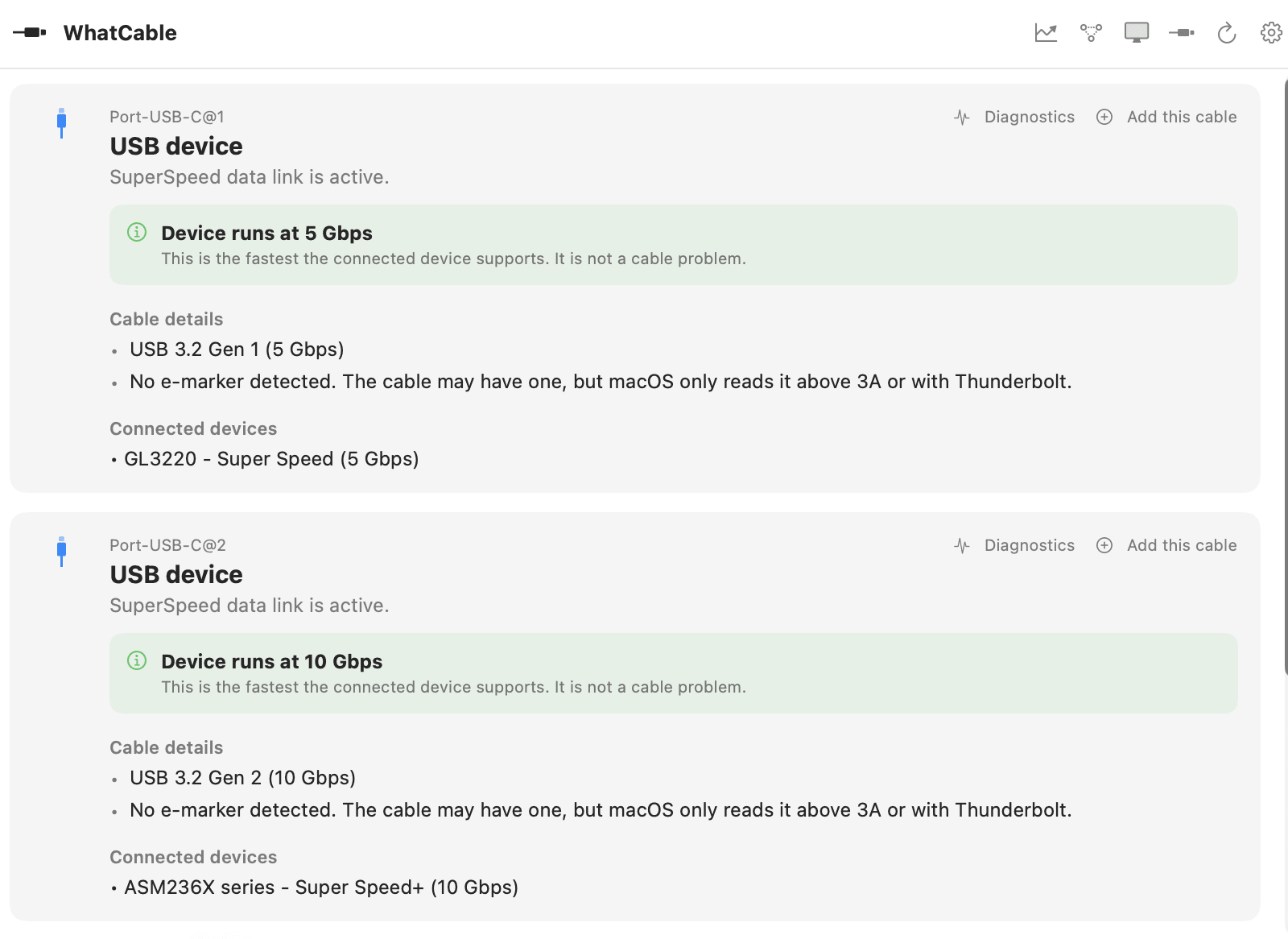
WhatCable (whatcable.uk), is an open-source macOS menu bar utility / app developed by Darryl Morley that strips away the guesswork or going into System Report. WhatCable reads the raw USB Power Delivery (USB–PD) and e-marker data that macOS already exposes through IOKit, translating it into plain English.
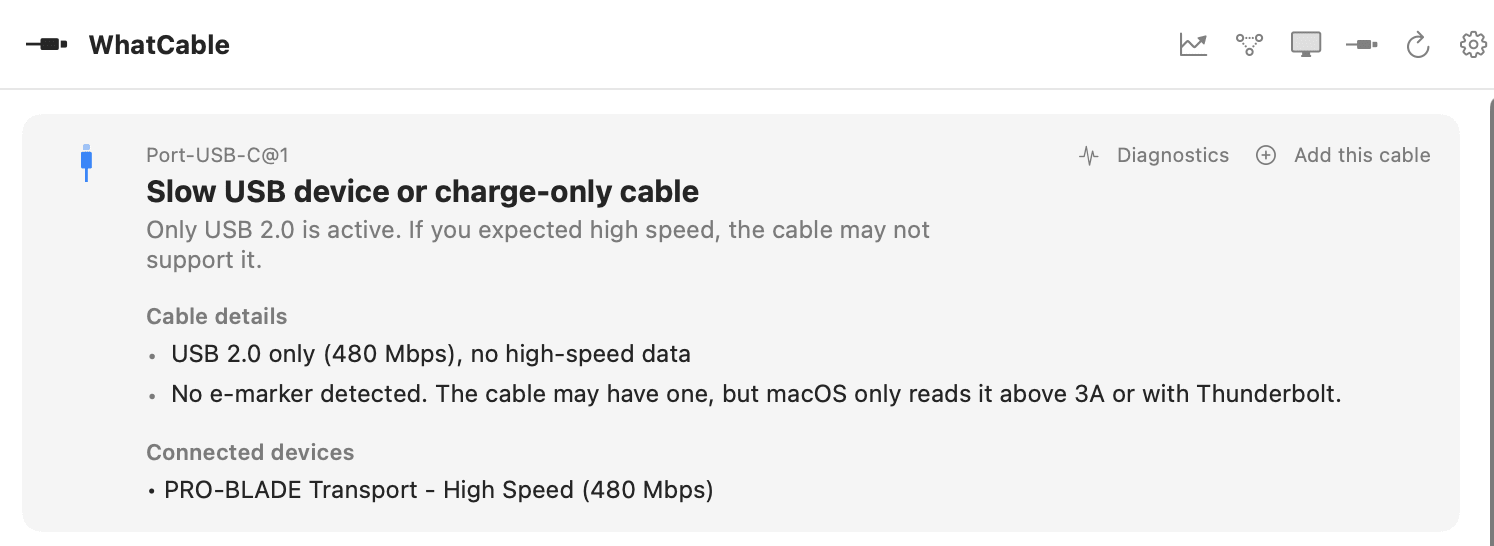
When you plug a cable into an Apple Silicon Mac, the app provides an instant, at-a-glance headline of its true capabilities. It reads the embedded e-marker microchip inside the connector to reveal the cable's actual maximum data rating – whether it is an older 5 Gbps link, a standard 10 Gbps cord, or an ultra-fast 40 to 80 Gbps USB4 line. It also flags the exact power delivery capabilities, detailing if a cable is rated for 60W, 100W, or the newer 240W charging standards.
If a connection is running slower than expected, WhatCable isolates the culprit by displaying clear diagnostics like "Cable is limiting data speed" or "Device runs at 10 Gbps, this is the fastest it supports".
Bamboozled by bottlenecks
Unfortunately, just to confuse the total theoretical speed dilemma, there are many bottlenecks in any system. For example, we were running tests on a MacBook 14" M2 MAX, but were confounded by the fact that even when using USB-C 20G / Thunderbolt 3 & 4, we were still topping out at 10GB speeds with our SanDisk Professional PRO-BLADE TRANSPORT - which is theoretically capable of 20 Gbps.
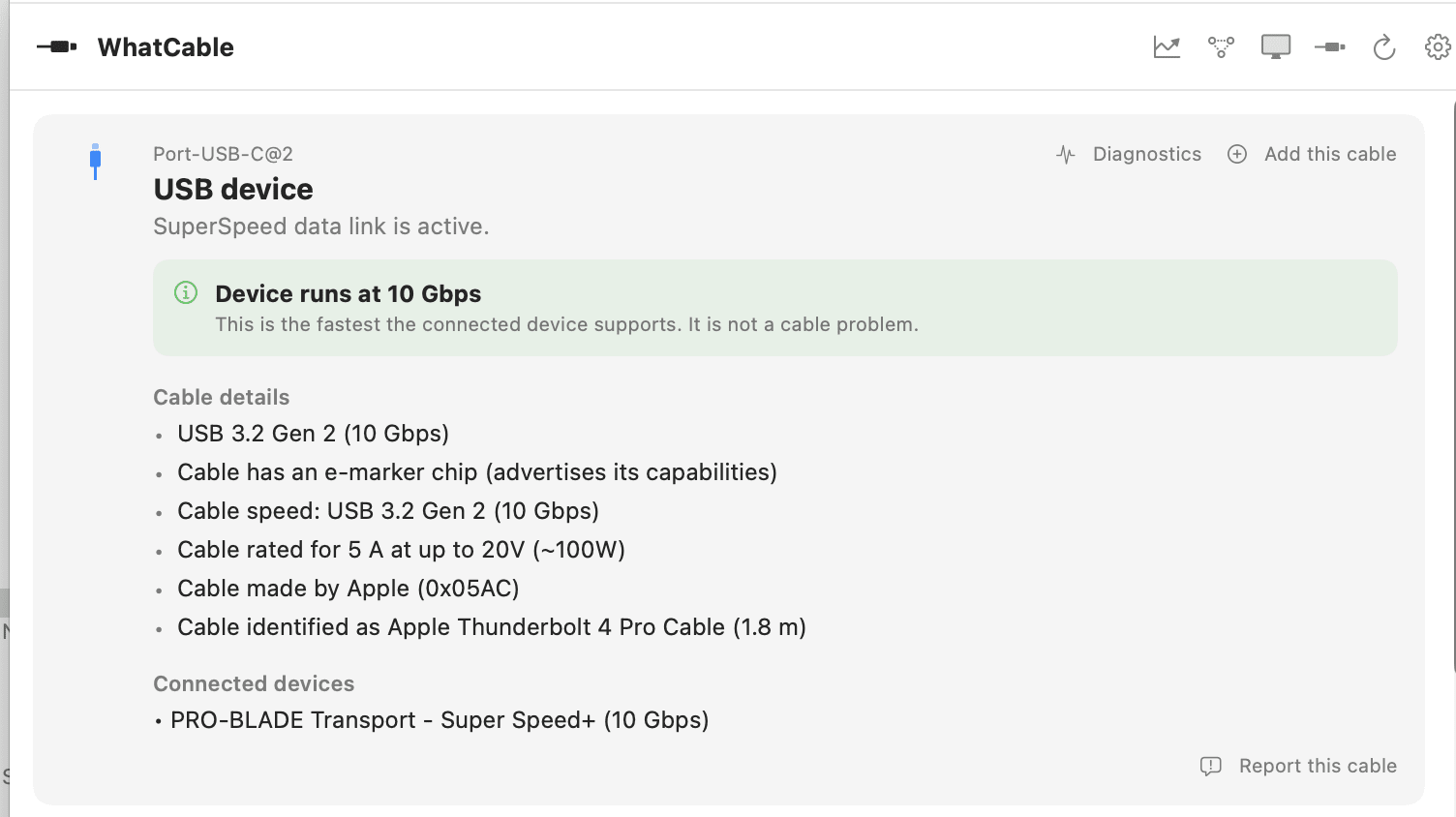
This M2 Max MacBook interface used in this review has a standard called USB 3.2 Gen 2×2 (which uses two separate 10Gbps lanes simultaneously to reach 20Gbps. Earlier Apple silicon Macs do not natively support the USB 3.2 Gen 2×2 standard. To unlock these top speeds, you will need a MacBook Pro with an M4 or M5 Pro or Max chip. This hardware grants you a theoretical bandwidth of 80 Gbps, allowing high-end external drives to hit real-world transfer speeds of up to 6,000 MB/s.
All these numbers aside, most users will be able to easily 'get by' at 5-10Gbps in the real world, so don't panic if you can't get speeds as advertised.
In any case, it is a good idea to be able to quantify your cable speeds to ensure you get the most from your hardware. You can download the Whatcable app for free, or purchase the pro version for approximately AU$20.