


Walking into a photographer mate’s home studio a while back, I caught a glimpse of his monitor and winced. Right across the front glass was a nasty crack. "Ouch... what happened?" I asked.
The answer was a classic location–shoot casualty: "I took it on set and someone tripped the tether-cable." Yes – any monitor can be portable, but that doesn't mean they are easy to transport, nor are they made for the actual rigours of being on location.
If you are a digitech, work in video production, or just prefer a larger canvas than a 14–inch laptop, lugging a standard monitor around can be a cumbersome affair.
The real killer is often the stand, which typically adds another 25 per cent to the bulk and makes the whole package awkward to lug around. Should you use the stand as the carrying handle? Will the stand accidentally detach causing the monitor to smash on the ground? Will the unit sit flat during transport?
Unless you have a professional flight case or a dedicated monitor bag, most people transport their screens 'the rookie way' by laying a towel on the back seat and placing the monitor either face down or face up – the latter of which makes it unstable as you plough through peak–hour traffic. On a whole, they are a pain to transport.
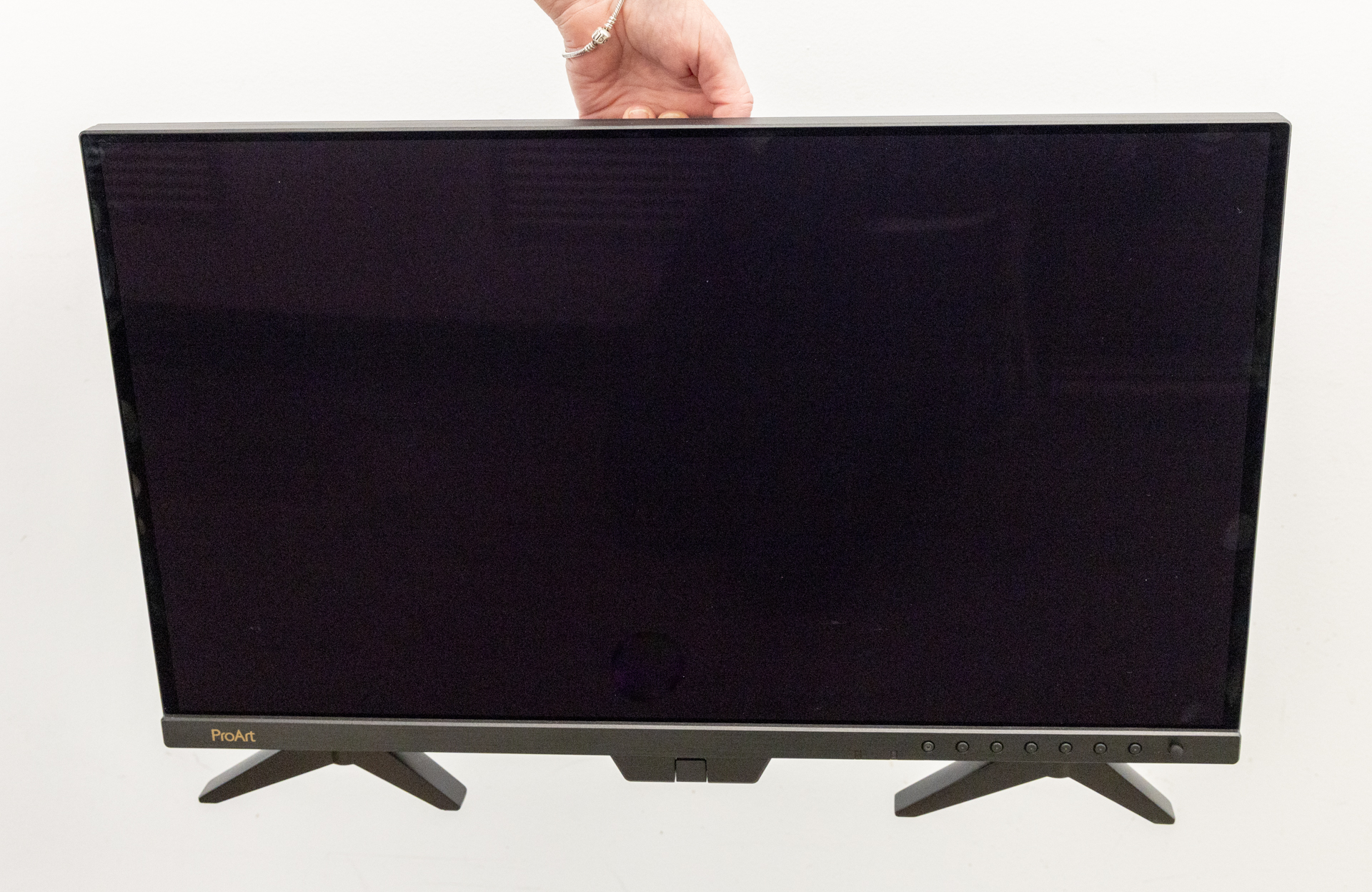
The upcoming 4K 27" ASUS ProArt PA27USD addresses this portability challenge with a unique 'flat–pack' design and a built–in handle.
However, the screen's primary appeal isn't solely its mobility – it is a high–performance 'professional grade' 27" (26.5-inch viewable) 4K UHD (3840 x 2160) QD-OLED panel with 240 Hz refresh rate panel that serves as a versatile 'do–everything' professional display. It is engineered to meet the exacting needs of various disciplines, including video production, photography, graphic design, and high–end gaming.
Testing the portability
In my current role, I work remotely across several locations – from TAFE NSW to the Capture offices, my home office, and a studio. Lately, I’ve been spending more time in the studio and found myself huddled over my laptop, squinting a bit to see the finer details on the small screen. After a full day hunched over a 14-inch MacBook, my neck and shoulders were in pain. Ergonomically, this isn't the way to work.
Fortunately, the ProArt PA27USD review unit was only a few blocks away at the Yaffa Publishers office. I contemplated walking the 600 meters with the monitor using its unique carry handle, but was offered a lift in a car. Time to get out the 'rookie towel', wrap it up and lie it flat on the back seat. While it’s technically portable, the monitor still weighs in at 5.35kg with its unique flip–out stands. This being said, the screen does feel rugged enough to pick up and lug at a moments notice.
Design and 'flat–pack' utility
The ProArt is unique because it features a completely flat back. It has integrated legs that pivot and flip out when you arrive at your location. Though portable, this isn’t a battery–run monitor, so I wouldn’t suggest using it in a cave in the middle of nowhere. Fortunately it can get by on the most minimal cable setup – it runs off a standard 'kettle cord' (actually called an IEC 60320 C13/C14 cable) and supports USB–C connectivity with 96W power delivery to your laptop – which definitely streamlines a mobile workstation.
A note on the handle:
Carrying the 5.35kg monitor via the integrated handle is super-easy, and it was a breeze to throw it on a towel (face up) in the back of the car. However, I have one request for the team at ASUS: please redesign the handle without the angled, bevelled, almost sharp edge on the bottom. It makes it quite uncomfortable for long–distance carries.
Fearing that I might just have wimpy hands, I got other team mates at Yaffa to give their opinion on the handle and it was unanimous that the edge felt uncomfortable for longer carries. I understand most monitors won't be carried more than 50 meters, though it would be nice if the handle is actually comfortable(ish).
Ergonomics: How high should your monitor sit?
The downside of using the fold–out legs is height. For correct ergonomics, your screen should be slightly below eye level when you are sitting upright. Using the legs means the monitor sits a bit low on the desk, often forcing you to place it to the left or right of your laptop.
However, in the 'real world' of your main office, you can use the included fully-featured 'normal' mount, which allows for height adjustment, tilt, and vertical orientation. When it’s time to go on location, you simply detach the mount and revert to the portable legs. The only thing to note here is that having the standard monitor stand attachment on the back will mean that the back is no longer perfectly 'flat' – the mount will add a 'bump' to the back.
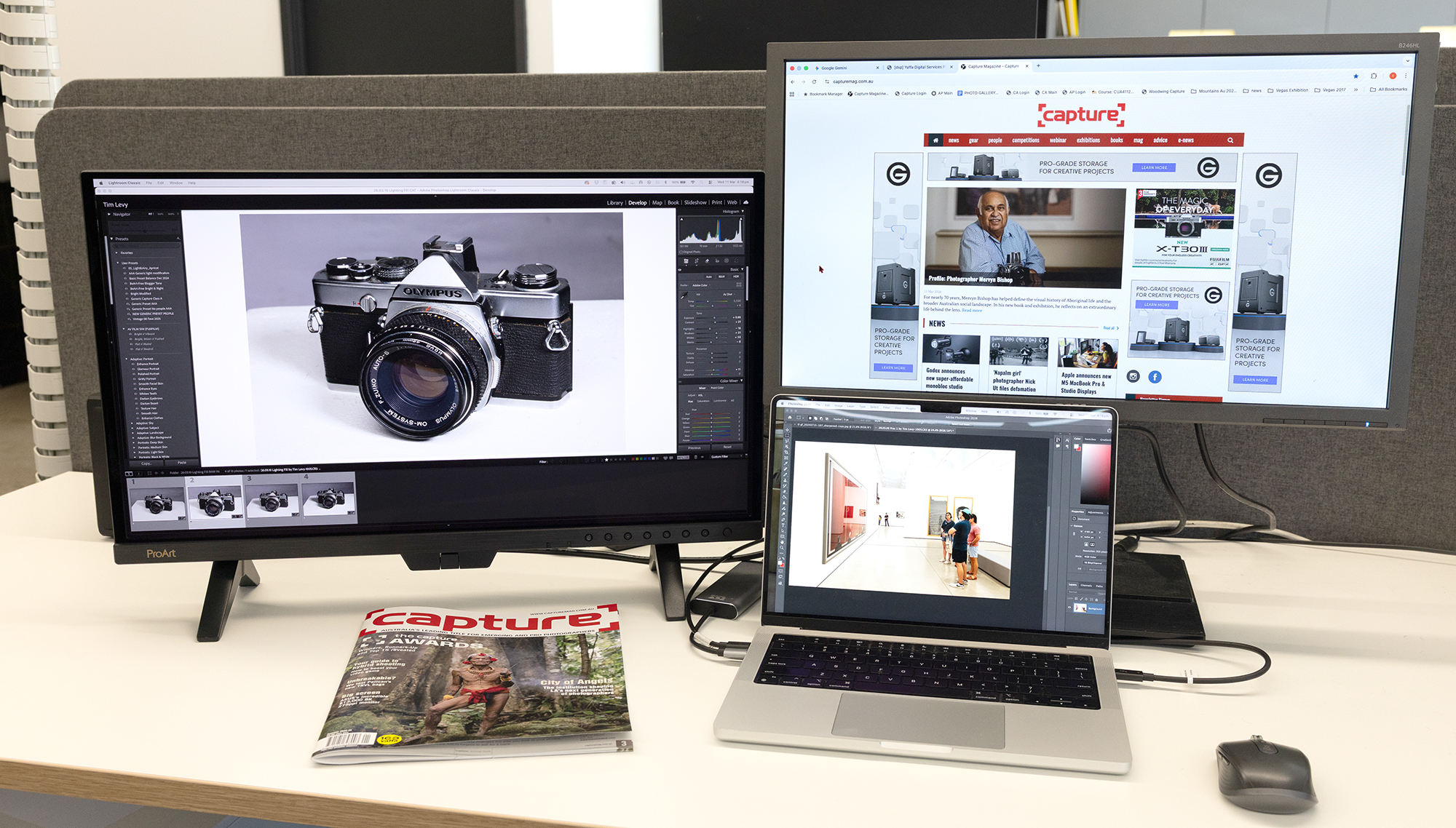
However, the ProArt monitor includes a 'fully-featured' normal stand with height adjustment and optional vertical orientation.
Photo: Tim Levy
Controls and calibration
Historically, ASUS’s native on–screen controls – accessed by an array of front–side buttons – have felt like a trip back to the early 1990s with their boxy, low–res fonts. For aesthetically minded photographers and designers, it has always been a bit jarring.
Fortunately, the new DisplayWidget Centre software (available for Windows and Mac) finally brings the monitor's settings into the modern era. You can now make all the usual adjustments, switching between colour modes and brightness using your mouse – bravo!
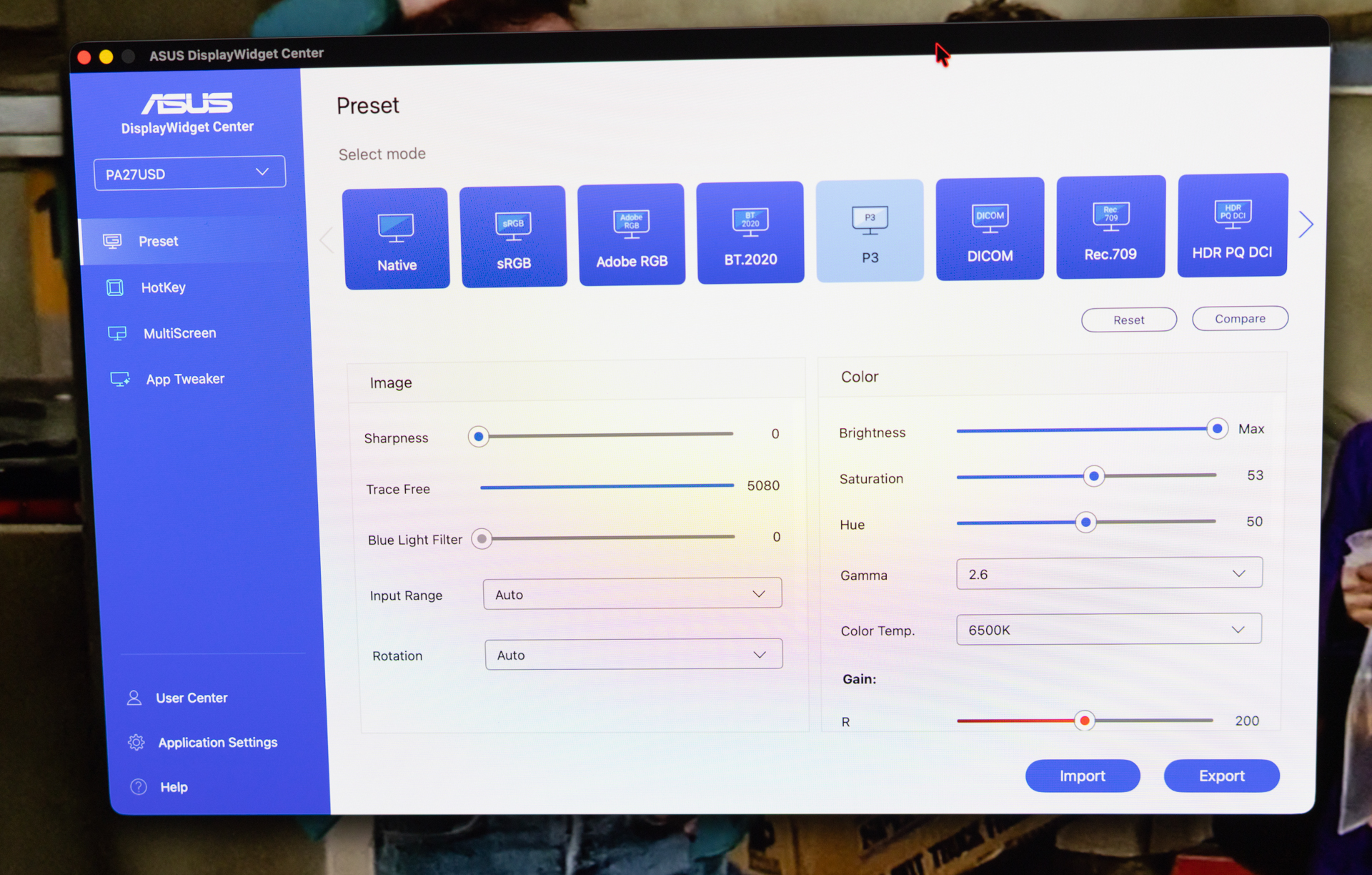
Usually, calibrating a monitor is high on my list of things I’d rather not do. This unit solves that with a built–in motorised calibrator that automatically flips out from the bezel. You simply select your target (sRGB, Adobe RGB, or P3, etc.) and the monitor does the rest.
Be warned: depending on how many targets you select, a calibration takes about three minutes per profile as it flashes through a series of colours and grey densities. Once calibrated, the results can be saved and even shared across other ASUS monitors.
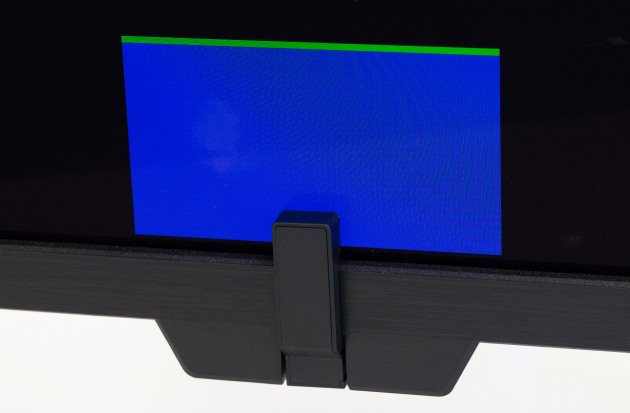
The colour calibration tool automatically retracts from under the monitor,
to take readings from a small swatch of the screen.
Observing the system in operation for the first time is genuinely impressive. Photo: Tim Levy
The OLED edge
The screen surface is glossy and almost identical in texture to a standard MacBook screen. Although it comes with a hood, in my particular office, the hood casts a shadow across the monitor, so I prefer not to use it.
At 3840 x 2160, you get a pixel density of approximately 166 PPI (ASUS doesn't advertise the exact PPI). While not quite 'Retina' (which sits at 218 PPI), you would be hard–pressed to see individual pixels even upon close examination of text. Interestingly, if you go into Mac System Report, this monitor comes up as a 5K monitor.
The monitor has 'true' 10-bit colour depth (1.07 billion colours) that reportedly provides 100% sRGB, 99% DCI-P3 and BT. 2020 wide colour gamut. An 8–bit panel can only physically display 256 shades per channel (16.7 million colours). To reach '10–bit' status, many 8-bit monitors 'cheat' using the FRC switching technique. So for example, if a specific shade of purple can't be reached, the screen rapidly flickers between the two 8-bit colours, creating the 3rd 'in-between' colour required to be '10-bit'.
Being an OLED panel, the blacks are absolute. The 1000 nits of peak brightness with VESA DisplayHDR True Black 400 relays exceptional colour contrast. HDR formats supported include Dolby Vision, HLG and HDR10. There is no backlight 'glow' which provides incredible clarity for movie watching and post–production.
We watched a few of our favourite films on it, and they looked nothing short of amazing.
When watching 'low–key lit' 4K Dolby Vision films where the majority of the image is dark, the screen really 'shines'. We tested Blade Runner 2049 and Dune: Part Two, and the OLED gradation between greys and blacks are excellent. The neon haze – rendered via true 10–bit colour – and the exceptional sharpness of the screen really show off the detail of textures and the sheen of reflective surfaces. Testing the same footage on other monitors lead to immediate disappointment!
Gaming and video performance
Most professional monitors are capped at a disappointing 60Hz, rendering slow refresh rates means that other gamers with faster refresh rates have a slight edge over you – especially in shooting games. At 60Hz, a moving enemy looks like a series of 'jumps'. At 240Hz that movement is a smooth, continuous line. This makes it significantly easier for your brain to predict where to aim – or where to 'lead' your shot.
Not only does this unit boast a 240Hz refresh rate but also a super-fast 0.1ms response time. So whether you’re a game developer or just like to unwind after a shoot, this monitor makes for an excellent gaming device.
Connections
There is an array of ports on the side of the monitor, which make them easy to access, as compared to many monitors that have the ports hidden on the underside of the screen. The highlights of course are the Thunderbolt 4, and 12G-SDI ports.
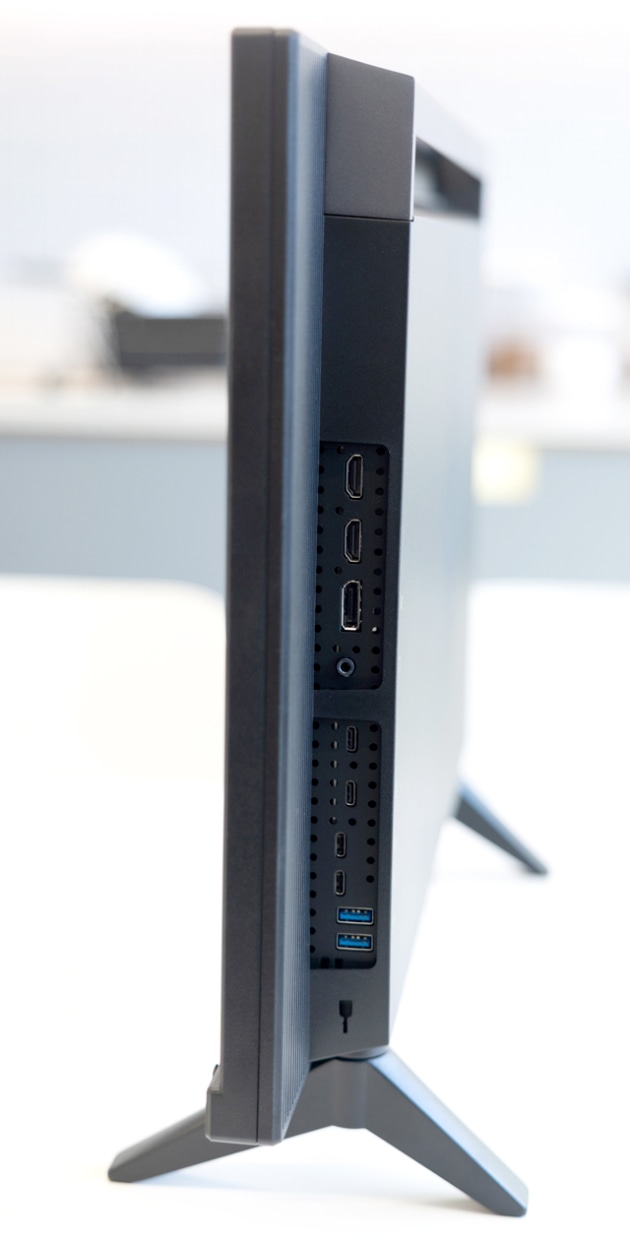
Photo: Tim Levy.
They include:
12G-SDI x 1
Thunderbolt 4 x 2 (Daisy Chain)
DisplayPort 2.1 x 1
HDMI(v2.1) x 2 (FRL)
USB Hub : 1x USB 3.2 Gen 2 Type-C
2x USB 3.2 Gen 2 Type-A
Earphone Jack
USB-C Power Delivery : 96W
USB 3.2 (Signal) : x 1 USB Type-C (For KVM Switch)
The 12G-SDI video production advantage
For video production, the 12G–SDI connectivity is a standout feature. It looks like a 'old-school' TV-aerial cable port next to the screens on/off switch.
Importantly, it relies on locking BNC cables designed for professional environments, offering zero–latency transmission for up to 100 metres and offers 4K@60Hz real-time playback without any compression. Unlike HDMI or USB–C connections – which can suffer from 'sparkles' or sudden dropouts over long distances – SDI remains stable and secure.
The Wrap Up
It is rare to find a monitor that 'rules them all' – balancing colour accuracy for stills, high–end SDI connectivity for video, and a 240Hz refresh rate for gaming. The ASUS ProArt OLED PA27USD manages to tick almost every box.
At first I was sceptical about it not being 'retina screen' but as mentioned, you'd be hard pressed to see any pixels even up close. Most importantly, the 4K films we watched really wowed us with the image quality. It really highlighted the incredible quality of OLED HDR monitors vs IPS (In-Plane Switching) LCD backlit monitors (as found in the Apple Studio Display).
The ports are plentiful and easy to get to – with the 12G-SDI connection quite a rarity on normal monitors. So this screen will definitely appeal to anyone working in on location video production.
The overall build of the monitor feels hardy enough to stand the rigours of taking it on location, or even to a friend's house to play video games.
So whether you’re a filmmaker, colourist, digitech, gamer, or photographer – this monitor feels at home both in the studio and on set. The screen is in the higher price range, but if you are a pro, or a dedicated gamer, it could be seen as a good investment.
Price: $3,499 RRP. Available: Mid–May 2026.
You can find out more on the ASUS website.
